Running an old version of a Steam game
By default, Steam will retain all released versions of a game. Steam clients will try to ensure that players are always running the latest version, but there are hidden features that allow you to download previous versions.
There are different scenarios depending on how the game developer managers their game on Steam.
Developer Provided Versions
The simple method...
If the developer of a game makes the extra effort to create branches for previous versions of their game, then it is very simple to switch version from your Steam library. So check for this first before moving on to the more complex methods described later.
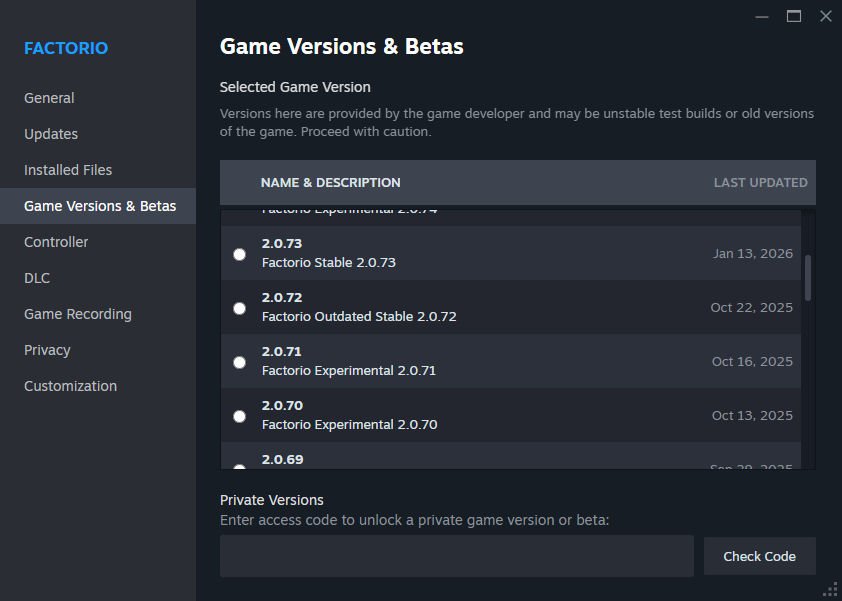
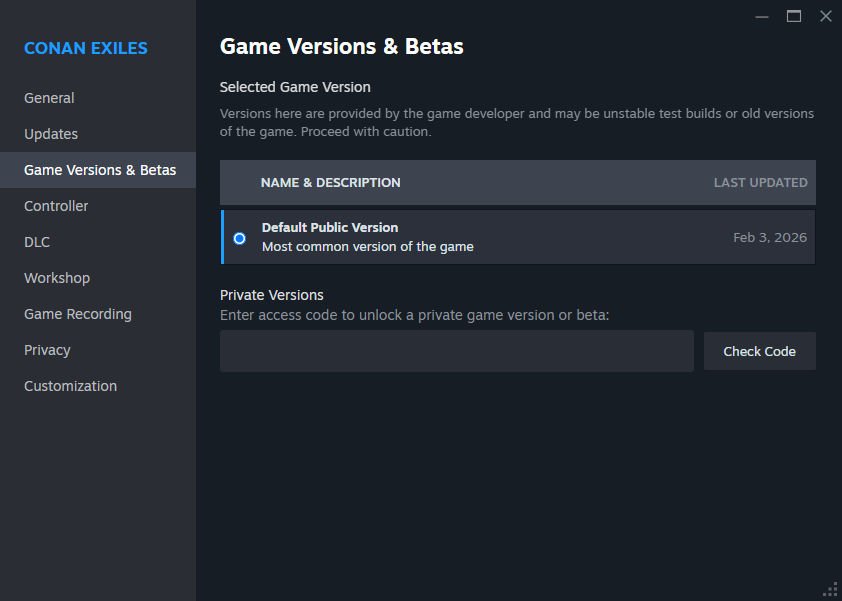
From your Steam library, right-click on the game you want to check and select "Properties..." from the menu. In the window that opens, select "Game Versions & Betas" on the left side. If the developer creates branches for previous versions, you will see them here.
Here is an example from the game Factorio where the developer consistently creates branches for each game version.
Here is an example from the game Conan Exiles where the developer does not create branches for game versions.
If the version you are looking for is available here, then all you need to do is select it and close the window. Steam will then download that version of the game and replace the version you had previously installed.
If the version you are looking for is not listed here, then you will need to move on to the more complex method.
Other Versions
The complex method...
If the developer has not created a branch for the version you want, then you can use this method to get any previous version that Steam has available (which is usually all of them).
Step 1: Locate the game version
For this step, we will use a third party site called SteamDB to lookup game details. This site indexes all publicly available data about the games distributed on Steam. We need to find 3 different identifiers to use in later steps.
App ID
Each game on Steam has one or more App IDs. There is the ID for the main game and in some cases there may be separate IDs for additional tools such as a dedicated server. Search for the game and go to its page. The App ID will be near the top of the page.
For our example, we will be working with the game ICARUS (SteamDB listing) which has the app ID 1149460.
Tip: If you are unsure whether you found the correct listing, you can check the Steam store page for the game. The App ID will be part of the URL of the store page. For example store.steampowered.com/app/1149460/ICARUS. Note that secondary apps, such as dedicated servers, usually do not have a store page.
Depot ID
An app is divided into depots. A depot contains files related to the game. In nearly all cases, there will be a single depot that contains all the game files and often other depots that contain supporting packages such as runtimes and SDKs. We only care about the primary game depot.
In the SteamDB listing for the game, there should be a link along the left side of the page named "Depots" (it might be elsewhere on mobile). Click on that link to view the list of depots for the app. Look for the main game depot in the list. It will usually be the largest one, and will often have an ID that is the app ID + 1. If it is unclear, you can click on each depot to see what files it contains.
Once you have located the desired depot, click on it to access its details. At the top of the page will be the depot ID. For our example, the depot ID is 1149461.
Manifest ID
Each time new content is uploaded to a depot, it gets a manifest associated with that specific upload. We need to find the manifest ID for the specific game version we want to access.
While on the page for the depot, click on the link of the left side of the page named "Manifests" (it might be elsewhere on mobile). This will open a list of manifests. Search for the manifest associated with the version of the game you want to access. For our example, we will use manifest 7972194928586537059.
Note: You will likely need to figure out when the version you care about was released in order to locate the manifest since the only real information available on SteamDB is the date and time it was uploaded to Steam by the game devs. If you are unable to determine the specific manifest you need, you may need to download multiple manifests to try them (how to download covered in the next section).
Step 2: Download the game depot
Now that we have the information needed, the next step is downloading the game. For this, you can either use the normal Steam client, steamcmd, or a third party depot downloader. We will focus on using the Steam client here.
Open the Steam console using the following URL: steam://open/console
Note: If your browser security settings prevent you from opening the URL directly, you can copy the URL, press Win+R to open the run dialog, paste it there and press OK.
In the console, you can enter commands at the bottom to run them. We want to use the download_depot command which has the following documentation:
download_depot - download_depot <appid> <depotid> [<target manifestid>] [<delta manifestid>] : download a single depot
Using our example data, we would enter the following command. Substitute the IDs for the app, depot and manifest you want to download.
download_depot 1149460 1149461 7972194928586537059
Once the download starts, you will see a message like the following in the console.
Downloading depot 1149461 (543 files, 37058 MB) ...
At this point, the depot is being downloaded. There will be no indication of progress anywhere in the Steam client until it has completed. You just have to wait for it to finish. Once it is complete, it will print a new message telling you where it downloaded to. For example:
Depot download complete : "C:\Program Files (x86)\Steam\steamapps\content\app_1149460\depot_1149461" (manifest 7972194928586537059)
Open the indicated folder on your PC then continue to the next step. Do not attempt to run the game directly from this folder. Nearly all games will immediately detect they are missing environment variables and relaunch the game through Steam. This means you will be running the version in your Steam library instead of the one you downloaded.
Tip: If you are using steamcmd instead of the Steam client, thedownload_depotcommand uses the same format and works basically the same way. However, you need to first run thelogincommand.
Step 3: Create a script to launch the game
In order to launch the game properly and not have it redirect to the Steam library version, you will need to create a startup script. This guide covers the Windows version of such a script. You will need to adapt it if you are running on Linux or some other platform.
Start by opening your plain text editor of choice, or Windows Notepad if you do not have anything else. Create a new file and paste the following into it:
@echo off

set SteamClientLaunch=1
set SteamEnv=1
set SteamAppId=[AppID]
set SteamGameId=[AppID]
set SteamOverlayGameId=[AppID]
set SteamAppUser=[SteamAccountName]
set SteamUser=[SteamAccountName]
set STEAMID=[SteamID64]

start "" [PathToGameExe] [Arguments]
Next, we need to replace all the things shown in square brackets. Remove the brackets when doing the replacements; there should not be any brackets in the final version.
- [AppId]: The app ID for the game we found and used earlier.
- [SteamAccountName]: Your Steam account name. This is your login name, not the name people see you as.
- [SteamID64]: Your numeric Steam ID. You can find this from your Steam client by clicking the dropdown next to your name at the top of the window and selecting "Account details". Then in the page that opens, you should see your Steam ID just below your account name.
- [PathToGameExe]: The path to the game's main executable file, relative to where the game was downloaded. In our example, this would simply be
Icarus.exe - [Arguments]: Not required for many games, but necessary for some. Here you can enter any necessary command line arguments the game needs to run properly. See the addendum below for a method of figuring out what these should be.
Once you have everything set properly, save the file in the same folder where you downloaded the game. Name the file start.bat or something similar. The file extension needs to be .bat, not anything else like .txt. In an application like Notepad, when saving the file, change the "Save as type" dropdown to "All Files" to ensure it will not append an extra extension on the file name.
Locate the file in the folder. Verify that the file type is "Windows Batch File" and not something like "Text Document". If it is incorrect, you may need to enable showing file extensions on your system and then change the file extension to .bat (not .bat.txt which may have happened).
Make sure Steam is running and you are signed in. Then run the script by double-clicking it. This should launch the game. Verify that the game launched properly and is the version you expect. If it fails to launch or does not load up as expected, you may need to add game-specific command line arguments to your script. See the addendum below to help track down what these should be.
Once everything is successful, feel free to create a shortcut to your script somewhere such as your desktop if you desire. This will be your way to launch this version of the game in the future.
Warning: There are some rare cases where a game takes extra measures to ensure it is running from the Steam library location. In nearly all cases, setting up the environment variables using the above script will be enough to convince it to run. In the rare cases where it is not, it may still trigger the game to run from the Steam library. To work around this, you may need to copy over the downloaded depot and replace the files in the main install folder. Then you will need to go to the properties of the game in your Steam library and tell it to only update when you launch it. Then from that point on, do not update it and only launch it from a script, never from Steam or a Steam link. If you want to restore the latest version in the future, repair the game files from the game properties in your Steam library.
Addendum: Figuring out command line arguments
As noted is Step 3 above, some games require command line arguments in order to run properly. An example of such a game is Soulmask. If you launch the game without any arguments, it will just sit at the initial loading screen forever and never continue. We will use Soulmask as an example in the following process.
First, download the utility Process Explorer. Extract the contents of the zip file somewhere on your PC. Then right-click on the extracted file named procexp64.exe, select "Run as administrator" and wait for it to open.
Once you have Process Explorer running, follow these steps to determine the intended command line arguments for the game.
- Start the game normally from Steam.
- Once the game is running, look for the name of the game process in Process Explorer. It will typically appear under explorer.exe 🠊 steam.exe 🠊 NameOfGame.exe. For our Soulmask example, it is named
WS.exe. - Double-click the process name to open its properties. Within the window that opens, select the "Image" tab (usually selected by default). Look for the "Command line" field.
- In the "Command line" field, you will see the path to the exe followed by a list of command line arguments, if there are any. Copy these arguments and place them in your script at the designated location.
On my PC, I see this as the command line in Process Explorer:
D:\Games\Steam\steamapps\common\Soulmask\WS.exe StartMenu -game -StableNullID -online=Steam -d3d12 -nosoulmasksession -fileopenlog -NoVerifyGC
So my launch command inside my script would look like this:
start "" WS.exe StartMenu -game -StableNullID -online=Steam -d3d12 -nosoulmasksession -fileopenlog -NoVerifyGC